
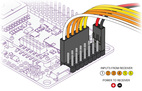
Before you can configure your Arducopter, you will need to first connect everything together. This guide will show you all the cables and parts that you will need to connect to your arducopter.
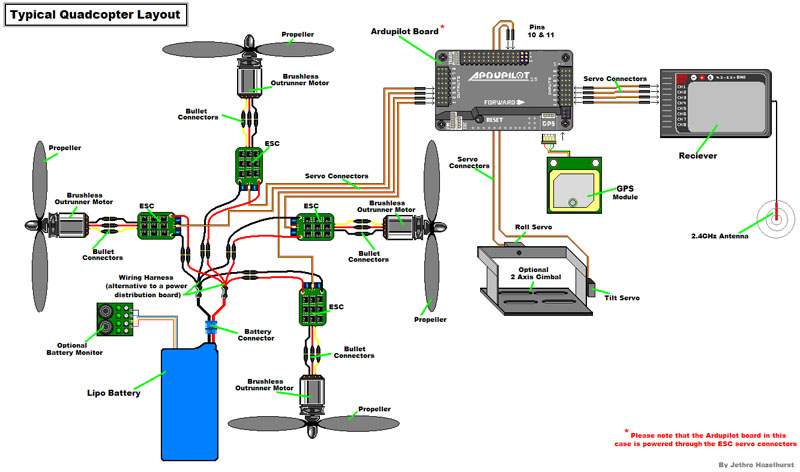
Typical Quadcopter Layout
Please note the illustration Below highlights a (TYPICAL) installation. It contains optional equipment including a Camera Gimbal and a Battery Monitor and it utilizes an ESC wired "Y" power connection rather than the power distribution board common to many MultiCopters.
1. Connecting your motors and RC gear
 Overview of connections on the Ardupilot Mega v2 board | Note: the instructions below are for regular RC receivers with PWM output (one cable per channel). If you're using a "PPM" receiver (one cable carries all channels), follow the instructions here. Before you can configure your Arducopter, you will need to first connect everything together. This is quite easy. You need to connect your RC receiver to the Input side of the board. You can use the cables included with your Arducopter Kit, or if you are using another frame, you can use jumper cables, or female to female servo cables 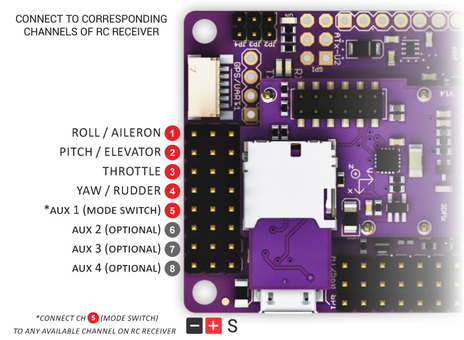 Connections between RC receiver and Ardupilot Mega v2 board |
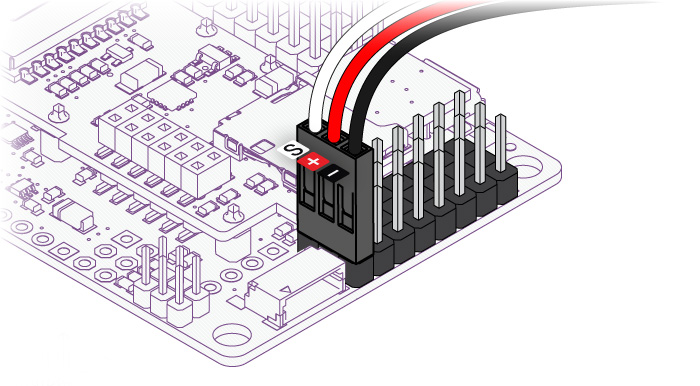
| If you are using female to female servo cables, the ground (black) side of each connector must be on the outside for the board, the signal (white/orange) needs to be on the inside as shown below.
| If you are using a multi-pin connector that was included with your Arducopter Kit, connect them as shown below
|
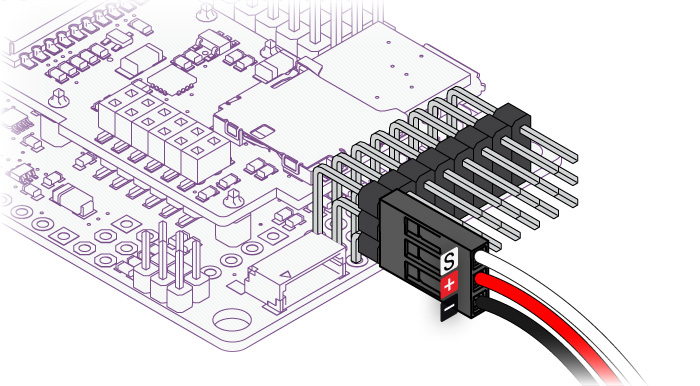

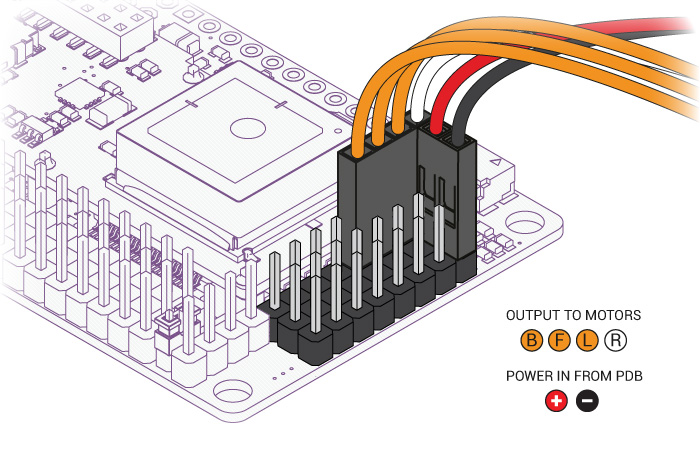
Please note, that your ESC, connectors should be plugged in the the output side, it is suggested that you only use power from one of your ESC's. This can be dune by cutting the red wire on all but one of the ESC's, or by using a special adaptor.
2. Connecting ArduCopter motors
| Once again if you are using an Arducopter Kit, with the PDB, then you dont need to worry about this if you soldered everything correctly as the motors are assigned to the correct pins with the cables you plugged connected in the previous step. However you will neet to make sure your motors are spinning in the correct direction. The images below show the possible arducopter configurations with correct motor orientation |  Quick Tip: If your motor is not spinning in the correct direction, simply switch the position of any two of the ESC-motor wires. |
Arducopter Quad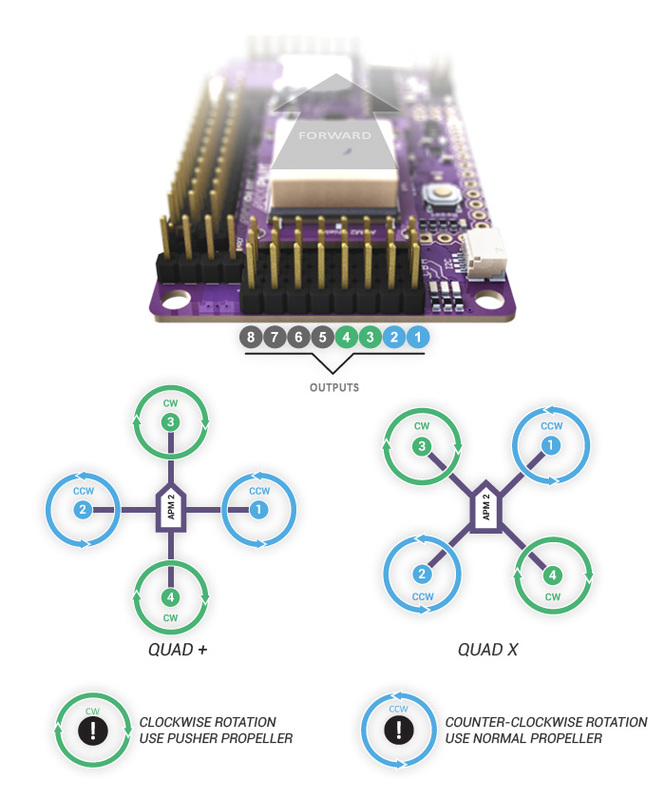 | Arducopter Tri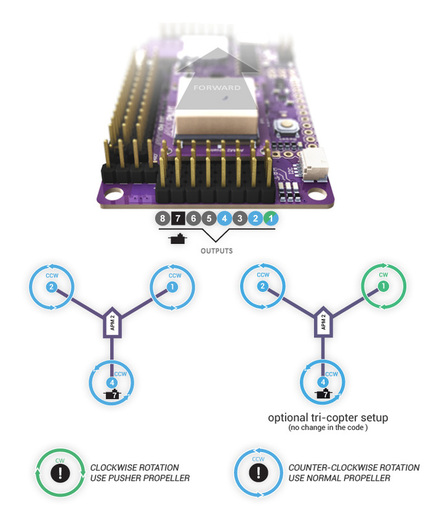 |
Arducopter Hexa, Octa, and Y6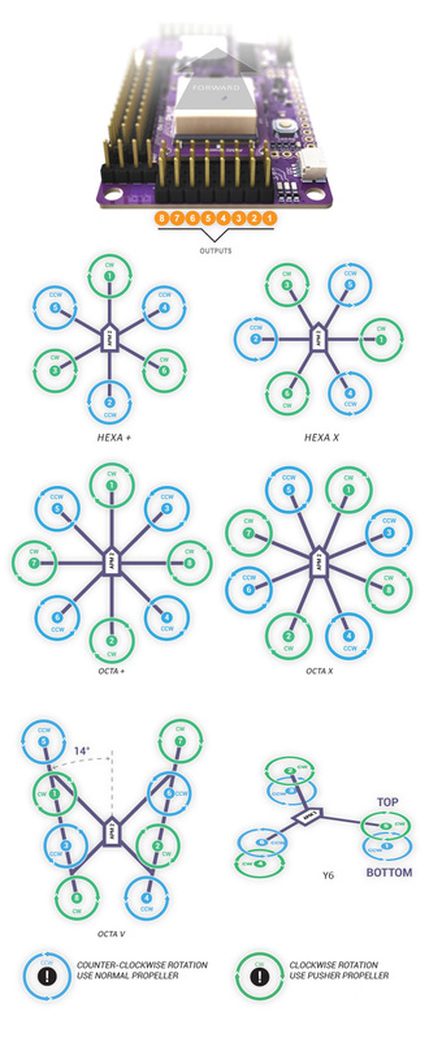 | Arducopter OCTA QUAD (X8)  Connecting a Roll-Tilt Camera mount 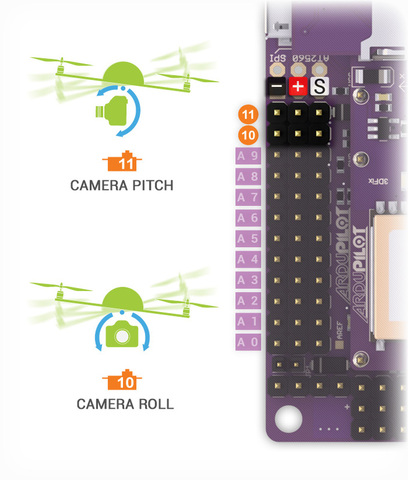 |
3. Connecting Optional Sensors
Sonar - Ultrasonic Rangefinder  AC2 supports the MaxSonar line of sonars for low level altitude hold and in the future collision avoidance. Below 10 meters sonar is primarily used for altitude hold. Above 10 meters, the barometric sensor is used. GPS is not required for altitude hold. 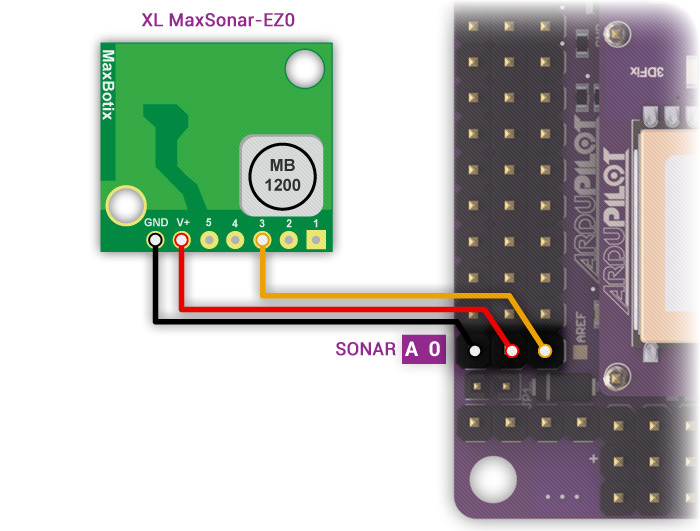 Connect your Ultrasonic Sensor to the A0 port of your Ardupilot Mega v2 board | The sonar sensors are quite sensitive to noise, adding something like a ferrite choke to your cable could help. The most important is to mount your sonar away from other electronics like ESC, or wireless telemetry modules. Possible Causes of sonar Interferance
|
Optical Flow Sensor 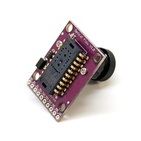 The optical flow sensor is used to improve the position hold accuracy of your arducopter. This sensor is supported from Arducopter 2.6 and above. Connecting the optical flow sensor to APMv2
| 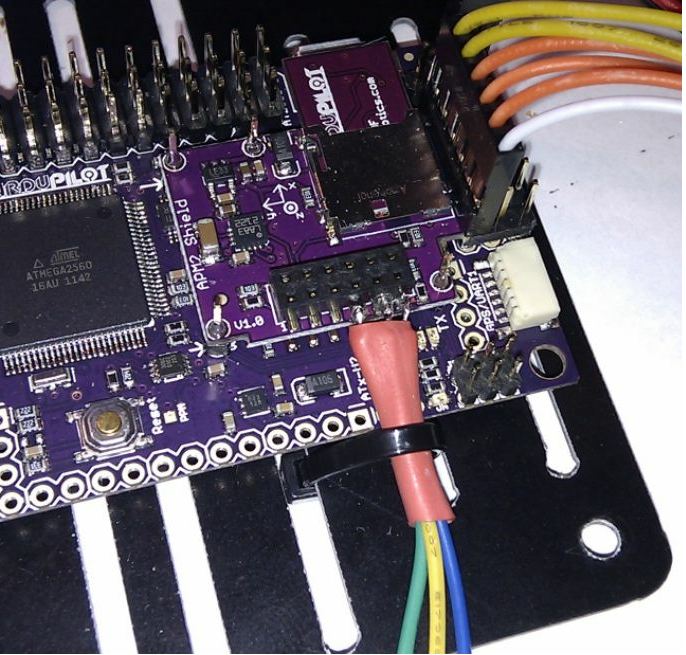 Its a good idea to secure the wires with some cable ties so they dont break off over time |
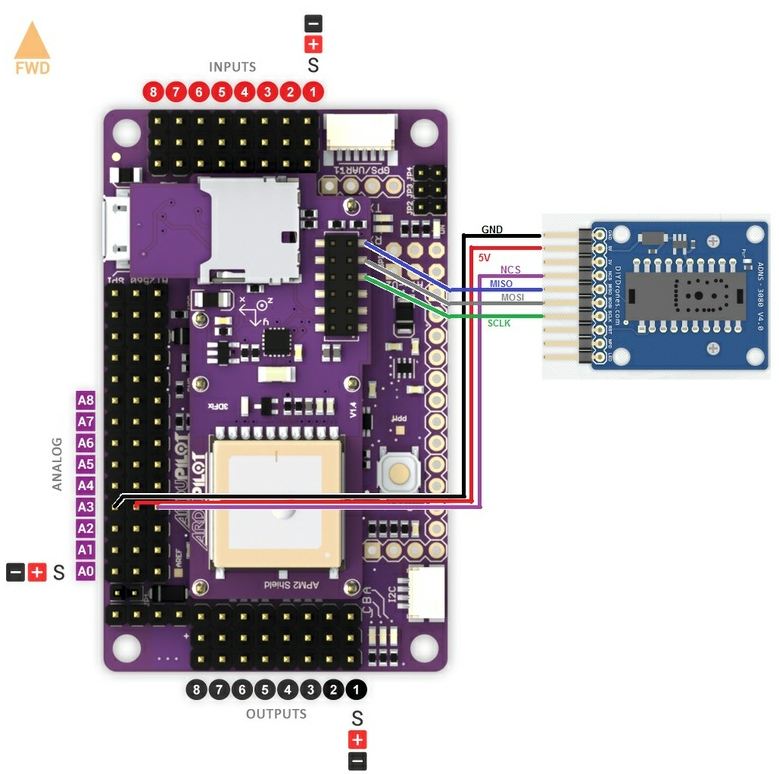
How to connect the optical flow sensor to your ardupilot mega board. Make sure the pins are facing forward
Now that everything has been connected everything the next thing to do is configure arducopter firmware for your frame.
If you have any questions or comments please add them below
If you have any questions or comments please add them below
 RSS Feed